
SignNow for Microsoft Word integration: How to send eSignatures without leaving Microsoft 365

Modern teams write, revise, and finalize documents in Microsoft Word. Yet the moment a file needs a signature, many workflows still fall into a slow routine: export, email, rename, chase, repeat. It’s a bit like trying to run a relay race while carrying a stack of papers—possible, sure, but not pretty.
This blog puts the process back where the work already happens. You’ll learn how the SignNow add-in for Excel and Word helps you prepare a Word document for signing, route it to the right people in the right order, track progress, and store the signed result cleanly. And importantly, it aligns with the official add-in listing details: the same add-in also supports Excel 365, saves completed copies to OneDrive automatically, and provides real-time status tracking.
SignNow for Microsoft Word integration: Send documents for eSignature in Word 365
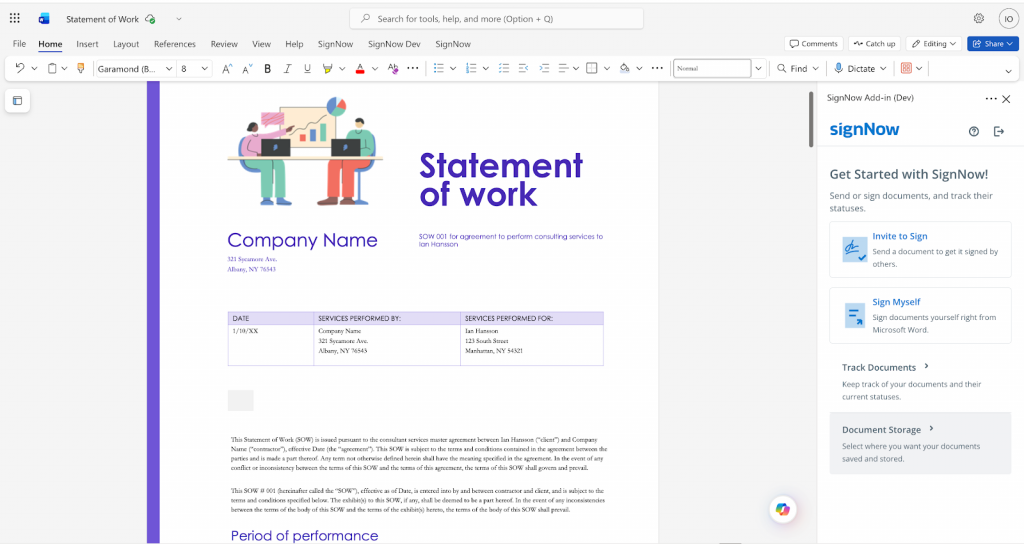
The SignNow add-in lets you send documents for signature directly from Word 365 without switching apps or emailing files back and forth. In real use, that means you can open a DOCX, start the add-in, add fillable fields, assign recipients, and send the document for signing—all from inside Word.
Once the document is signed, the completed copy is automatically saved to OneDrive. That automatic “handoff” is not a small perk. It’s often the difference between a tidy repository and a messy pile of downloads scattered across laptops.
To use the add-in, you also need an active SignNow Site License. If you plan a team rollout, treat licensing like a first-class requirement, not an afterthought.
What the Word 365 add-in actually helps you do
Think of the workflow as four clean phases: prepare, route, track, store.
- Prepare without leaving Word
You add signature, text, or date fields so recipients can complete the document without printing or scanning. This is where you prevent avoidable mistakes—missing dates, unsigned pages, or someone typing their name where an actual signature field should be.
- Route documents to the right people
The add-in supports sending to multiple recipients and routing in a predefined order when your process needs sequence—manager first, then finance, then the final signer. It also supports adding a short message and CC’ing coworkers to keep visibility high without turning everyone into a blocker.
- Track progress in real time
You can see whether a document has been opened, signed, or completed right inside Word 365 (and Excel 365). This reduces the “any updates?” loop that eats time and patience.
- Store signed copies where your team expects them
You can save completed documents to your SignNow account or to OneDrive in PDF format, depending on what fits your workflow best. Combined with OneDrive autosave after signing, this supports clean recordkeeping with fewer manual steps.
How to install and access the SignNow add-in in Word 365
Installation itself is often straightforward, but business environments can add friction. The most common blockers are admin policies, store restrictions, and user permission gaps.
Common rollout reality in Microsoft 365
Many organizations manage add-ins centrally. If your tenant requires admin approval, plan for it early. Otherwise, users will hit a wall, and the rollout will stall. And once a rollout stalls—well, momentum is hard to regain.
What to confirm before day one
Use this short checklist:
- Users have Word 365 access (and optionally Excel 365 access if your teams need spreadsheet signing too)
- Users have a valid SignNow license
- Users can sign in successfully and access the right workspace or team environment
- OneDrive is available and permitted for automatic saving after completion
Once you meet these basics, the workflow becomes very teachable. People don’t need to “learn a new system.” They just need to learn a new button and a new habit.
Prepare the Word document
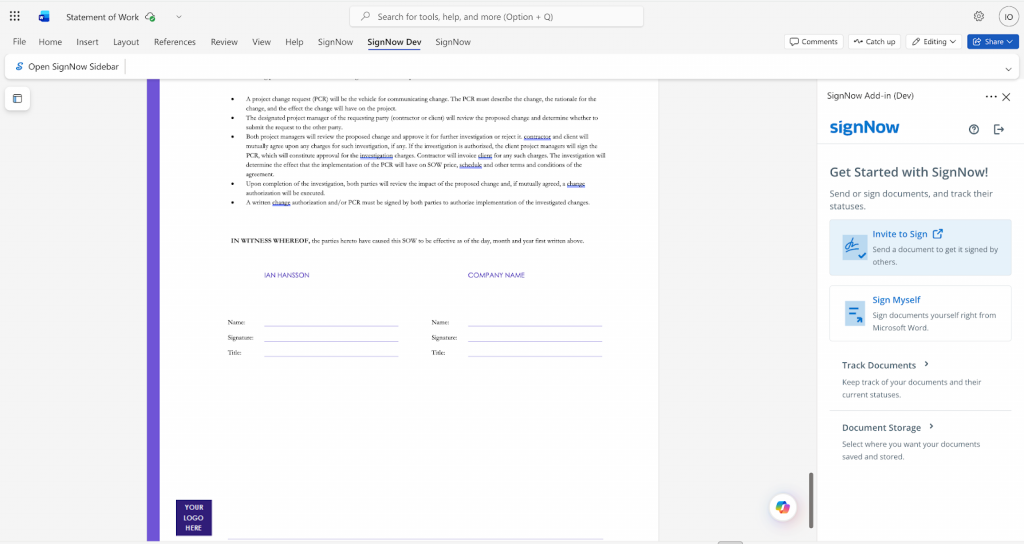
If you want fast signatures, start with a clean file. Sending a messy document and hoping the signing tool will “fix it” is like putting new tires on a car with no engine. Nice effort, wrong problem.
Choose a single source of truth
Decide where final drafts live:
- A shared folder in OneDrive
- A controlled document repository in your process
- A template library managed by a small group
Then stick to it. If people work from random email attachments, version control becomes a comedy—until it becomes a problem.
Do a layout and intent check
Before you add any fields:
- Confirm signature blocks are in the right places
- Ensure dates appear near signature areas
- Verify page breaks don’t split signature sections awkwardly
- Confirm names, titles, and company details are current
This quick review prevents the “Oh no, we sent the old version” moment. And yes—everyone has had that moment. Oops.
Add fillable fields and make the document easy to complete

The add-in supports adding signature, text, and date fields so signers can complete the document smoothly. This is where you reduce rework and speed approvals in a very practical way.
Field placement best practices
- Put signature fields directly where people expect to sign
- Keep date fields close to signatures
- Use text fields for printed names and titles
- Add clear labels (simple words win)
Reduce document errors with required fields
The listing highlights a strong principle: set required fields and clear labels so entries land exactly where they should. Required fields help you avoid “incomplete but technically submitted” documents, which can cause delays later.
Here’s a quick field planning table many teams use:
| Field type | Use it for | Make it required? |
| Signature | Acceptance and approvals | Yes, almost always |
| Date | Effective date or signing date | Yes, in most cases |
| Text | Name, title, reference ID | Often yes |
| Extra text fields | Optional notes | Usually no |
Aim for clarity over cleverness. If a signer has to guess what to do, they often do the wrong thing—or they pause and forget.
Add recipients, set signing order, and write a short invite message
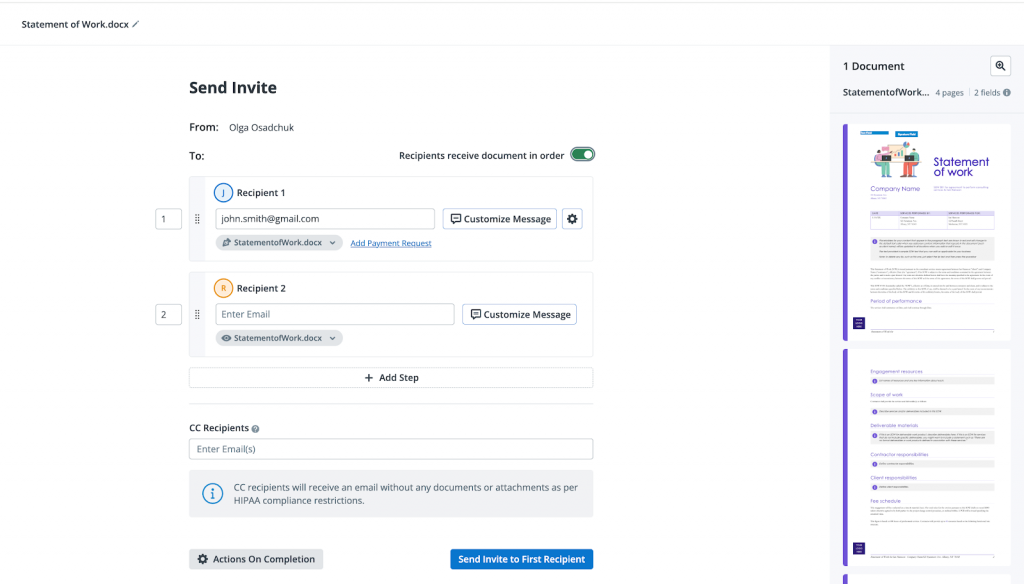
Multi-recipient workflows can move fast or crawl slowly. The difference usually comes down to routing discipline.
Signing order for sequential approvals
You can route documents to multiple recipients in a predefined order. This fits approvals where sequence matters, such as:
- Manager approval before final signature
- Finance approval before purchasing commits
- HR review before an employee acknowledgment
CC coworkers for visibility
The listing also notes you can add a short message or CC coworkers to keep everyone aligned. This is useful when someone needs awareness but should not block signing.
Invite message formula that works
Keep it short:
- What it is
- What to do
- When it’s due
Example style (adapt as needed):
- “Please sign and date the agreement by Thursday end of day. Reply if you have questions.”
Short messages get read. Long messages get skimmed. And skimmed messages get ignored—sadly, but true.
Send directly from Word and track status in real time
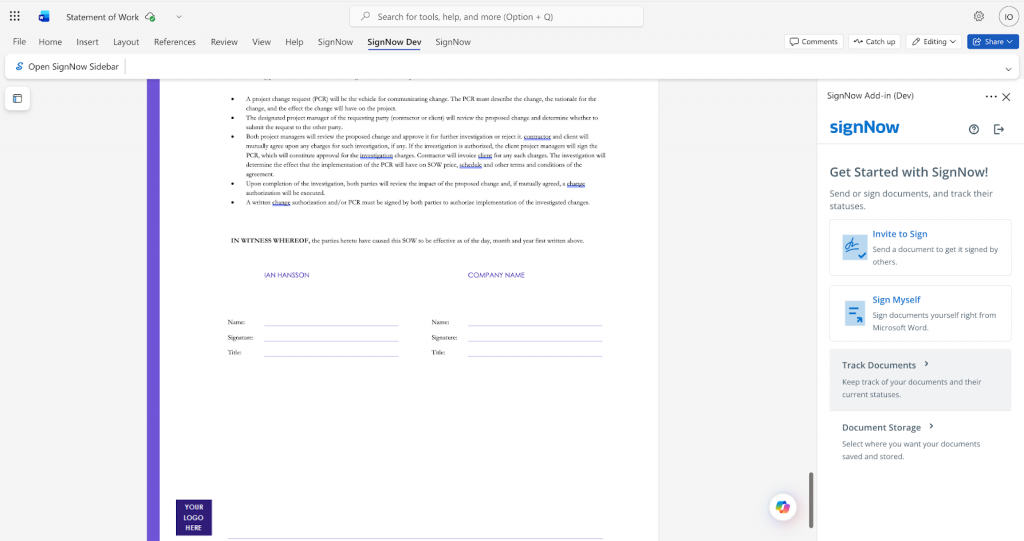
Once fields and recipients are set, you send the document for signing from inside Word. After that, tracking becomes the calm part of the process.
Track opened, signed, completed
You can see when a document has been opened, signed, or completed—directly inside Word 365 (and Excel 365). This visibility helps sales teams follow up on deals, finance teams follow up on invoices, and operations teams follow up on approvals.
Follow-up without being a pest
A simple approach:
- If opened but not signed: send a friendly reminder tied to a date
- If not opened: confirm the recipient address and send a brief heads-up
- If completed: confirm storage and close the loop
The goal is to stay helpful, not pushy. Nobody loves reminders, but everyone loves clarity.
Where signed files go: OneDrive, SignNow, or both
Storage is where compliance, operations, and “future you” all meet. Choose it intentionally.
Automatic OneDrive saving after signing
Once the document is signed, a completed copy is automatically saved to OneDrive. That’s a big deal for Microsoft-first organizations because it supports consistent retrieval and reduces manual downloading.
Flexible storage options
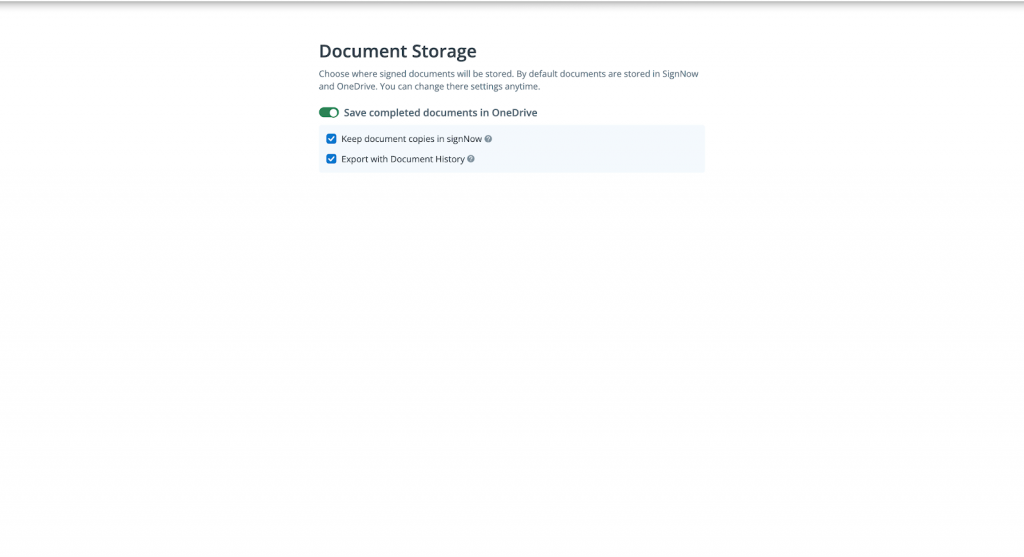
You can save completed documents directly to your SignNow account or to OneDrive in PDF format, depending on what works best for your workflow.
A practical policy that many teams use:
- OneDrive for the “working repository” and team access
- SignNow for signing activity, audit visibility, and process control
- A clear naming convention that includes date + document type + counterparty
This keeps your files tidy. And tidy systems tend to stay tidy—like a well-run kitchen.
SignNow for Microsoft Word 365 integration is a good fit if you:
- Work with Word documents or Excel spreadsheets every day and need an easier way to get them signed
- Send contracts, forms, or approvals that require multiple people to sign in a specific order
- Want to reduce printing, scanning, and manual paperwork
- Spend too much time chasing missing signatures or fixing incomplete documents
- Regularly handle invoices, quotes, payroll sheets, or compliance forms and want to keep everything secure and organized
Final thoughts: start faster approvals in Word 365
If your team already drafts, edits, and finalizes documents in Microsoft Word, there’s no reason signature requests should live in a separate, messy process. With the SignNow add-in, you can prepare the document, send it to the right people, track progress, and keep your records clean—without leaving Word. Better still, once signing is complete, the finished copy is automatically saved to OneDrive, so your “where did it go?” problem shrinks fast.
Now here’s the simple next step: try the SignNow Microsoft Word integration with a real document this week. Pick one high-frequency file—an approval form, a standard agreement, or an internal sign-off—and run it through the Word 365 add-in end-to-end. Add the required fields, assign recipients, set the signing order if you need it, and send. In one cycle, you’ll see exactly how much time you save and where the workflow fits your team best.
Ready to move from “chasing signatures” to “closing tasks”?
Open your next Word document, launch the SignNow add-in, and send your first signature request today. The fastest way to prove value is to put it into motion—because once people experience a smoother approval flow, they rarely want to go back.
Glossary
- Add-in (Office add-in)
A tool you install in Microsoft Word 365 (and Excel 365) that adds SignNow actions inside the app, so you can prepare and send documents for signing without switching platforms. - eSignature (electronic signature)
A way for someone to sign a document electronically, showing intent to agree—without printing, scanning, or physically mailing paperwork. - Fillable fields
Interactive fields you place in a document—such as signature, text, and date—so recipients can complete required information in the correct spots. - Signing order
A routing setup that sends the document to multiple recipients in a predefined sequence, so approvals happen in the right order (for example, manager first, then finance). - Document status tracking
Visibility into whether a document has been opened, signed, or completed, shown inside Word 365/Excel 365 to help you follow up confidently. - OneDrive autosave (completed copy)
An automatic save behavior where, once the document is signed, the completed version is saved to OneDrive, helping keep finalized records easy to find.
FAQs
- Do I need a SignNow license to use the Word 365 add-in?
Yes. The add-in requires an active SignNow Site License, so users must have an active SignNow Site License subscription tied to their account before they can send documents for signature from Word 365. If you’re rolling this out to a team, it’s smart to confirm licensing early so users don’t hit access issues during setup. - Can I send documents for signature from Excel 365 too?
Yes. The same add-in supports sending documents directly from Word 365 or Excel 365, which is helpful when approvals live in spreadsheets (quotes, payroll sheets, budget sign-offs). The flow is similar: open the file, start the add-in, add fields, assign recipients, then send. - Can I sign the document myself using the add-in?
Yes. If you just need to sign (without sending a signature request), click Sign Myself to add your signature and other data like a date, checkmark, line, or text directly in the document. - Where does the signed document go after everyone signs?
Once it’s signed, a completed copy is automatically saved to your OneDrive, which keeps final versions easy to find in your Microsoft environment. In addition, you can save completed documents to your SignNow account or to OneDrive—whichever matches your team’s preferred storage workflow. - Can I set a signing order for multiple recipients?
Yes. You can automatically route documents to multiple recipients in a predefined order, which is ideal when approvals must happen in sequence (for example, manager review before final signing). This helps prevent bottlenecks and keeps everyone aligned on “who signs next.” - Can signers complete the document without printing?
Yes. Signers can open, review, and sign a Word document or Excel spreadsheet from any device, whether they’re at a desk or on the go. That means no printing, scanning, or manual paperwork steps slowing the process down. - What security and compliance does the add-in listing highlight?
The listing states files stay protected with banking-grade encryption and compliance with HIPAA, GDPR, SOC 2 Type II, and PCI DSS. This is especially relevant for teams handling regulated or sensitive documents that need consistent controls and secure storage.
- SignNow for Microsoft Word integration: Send documents for eSignature in Word 365
- What the Word 365 add-in actually helps you do
- How to install and access the SignNow add-in in Word 365
- Prepare the Word document
- Add fillable fields and make the document easy to complete
- Add recipients, set signing order, and write a short invite message
- Send directly from Word and track status in real time
- Where signed files go: OneDrive, SignNow, or both
- Final thoughts: start faster approvals in Word 365
- Glossary
- FAQs